Category: Script

PowerShell 3

NTP Configuration in iLO: Best and Fast Solution by PowerShell

In order to keep synchronize iLO time with NTP server or time server, you have to enable NTP configuration and add proper NTP server address. Configuring NTP on more than one server is a difficult task for any administrator, because you have to do it via iLO command line or web based GUI manually. At this post I want to share an example for NTP configuration as a PowerShell script.

PowerCLI 0

[Script]: Check Time Synchronization with Host on Virtual Machines – PowerCLI

As you know, virtual machines can sync their time with ESXi host when VMware Tools is installed on the virtual machines. Also the configuration should be enabled on virtual machine configuration manually. The configuration is available on “Virtual Machine Properties”: If there is more than one virtual machine (Absolutely YES), the configuration should be enabled via an automation solution such as PowerCLI because enabling the configuration manually is very difficult. As all virtual machines don’t need to this configuration for time synchronization, administrators enables the configuration for some VMs when it needed. Some times, administrators have to provide a report from the virtual machines which have the configuration enabled. So how an administrator be able to create a query from the virtual machine. The stupid solution is checking virtual machine via GUI one by one. But true solution is create query from virtual machine via an automation tools such as PowerCLI The Script! Administrator can run the below PowerCLI script to find the virtual machines with “Synchronize guest time with host” configuration: The {File Path} should be changed with actual file path for storing the information as CSV file. More on Tiemouri.Net VMware Tools Client – Interact with a VM...
PowerCLI 10

Change Linux IP Address via PowerCLI

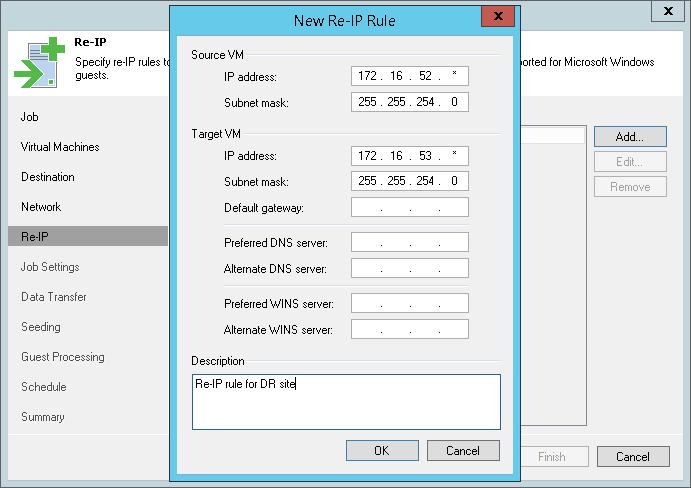
There is some reason that you want to change IP address on virtual machines as an example, moving virtual machines to a new VLAN or port-group or moving them to another site or replicate virtual machine to an offsite recovery site. Changing IP on machines one by one is very difficult on more than one machine and it be tougher. PowerCLI has cmdlet that it called “Invoke-VMScript”, the cmdlet lets you to run scripts on guest OS even when guest OS has no IP. But VMware Tools must be installed and also updated VMware Tools is recommended. Also you must have guest OS credential to run your script. Sample Script for Change IP Address Here is a sample script to change address on multiple VM and also change NFS mount point addresses on “fstab” file. Before run, you must customize the below script and put proper network configuration file within the script: Further Reading Add existing virtual desktops to “Automated Pool” in VMware View manually [PowerCLI]: Change Local Account Password on ESXi [Script]: Find ESXi HBA WWN via PowerCLI Veeam Backup & Replication – Re-IP Rule on Linux VM

PowerCLI 3

[PowerCLI]: Change Local Account Password on ESXi

Usually, administrators using same password on all servers for easier management and there is some security reasons to change the password periodically such as defining an expire time for password or when one of members is left company. Changing user’s password or many users password on a single host is too easy but what about more than host? You know, VMware has provided some automation tools such as PowerCLI. The automation tools will help administrators to do their tasks much easier and faster than GUI. In this post, you’ll find a simple solution for changing multiple users password on multiple ESXi hosts. The Script! The below script will help you to change a user account’s password on multiple ESXi servers: I’ll publish another script to change multiple accounts password with multiple passwords on multiple ESXi servers. Read More on Teimouri.net [PowerCLI]: Add Local Administrator Account on ESXi Using Client Information in VMware View VMware Tools Client – Interact with a VM without Network Connectivity VMware View Pool Entitelement Cleanup Run ESXi Commands Via PowerShell And SSH ESXi Command-Line – Part 1 [Script]: Find ESXi HBA WWN via PowerCLI Check CPU, Memory and Storage OverCommitment – PowerCLI