

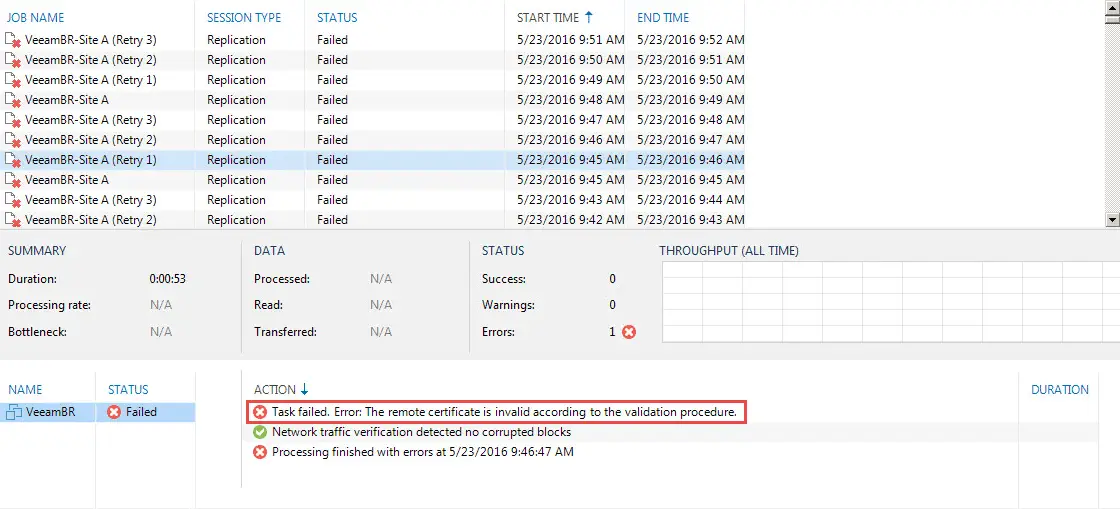
I faced with “Invalid remote certificate”:
“Task Failed. Error: The remote certificate is invalid according to the validation process”
on some my replication jobs between two our vCenter servers and Veeam BR couldn’t validate our target vCenter server certificate.
I found a solution for resolving invalid remote certificate that I want to share it with you.
Here is my environment specifications and the configuration. The log file locations maybe different with you environment:
- vCenter 6
- ESXi Host 5.5 U3
- Veeam B&R 9
- Windows 2008R2 SP1
What Was “Invalid Remote Certificate” Issue?
When vCenter server is adding to Veeam BR, its certificate’s thumbprint will be added to configuration database and if the vCenter server’s certificate was changed (Invalid remote certificate), you have to re-validate it in Backup Infrastructure. So if the certificate isn’t valid, you will see the below error:
How Can Resolve It?
Disable replication jobs & Veeam service
First step, disable all your backup and replication jobs that they are related to the vCenter and also stop Veeam BR service because invalid remote certificate doesn’t allow you
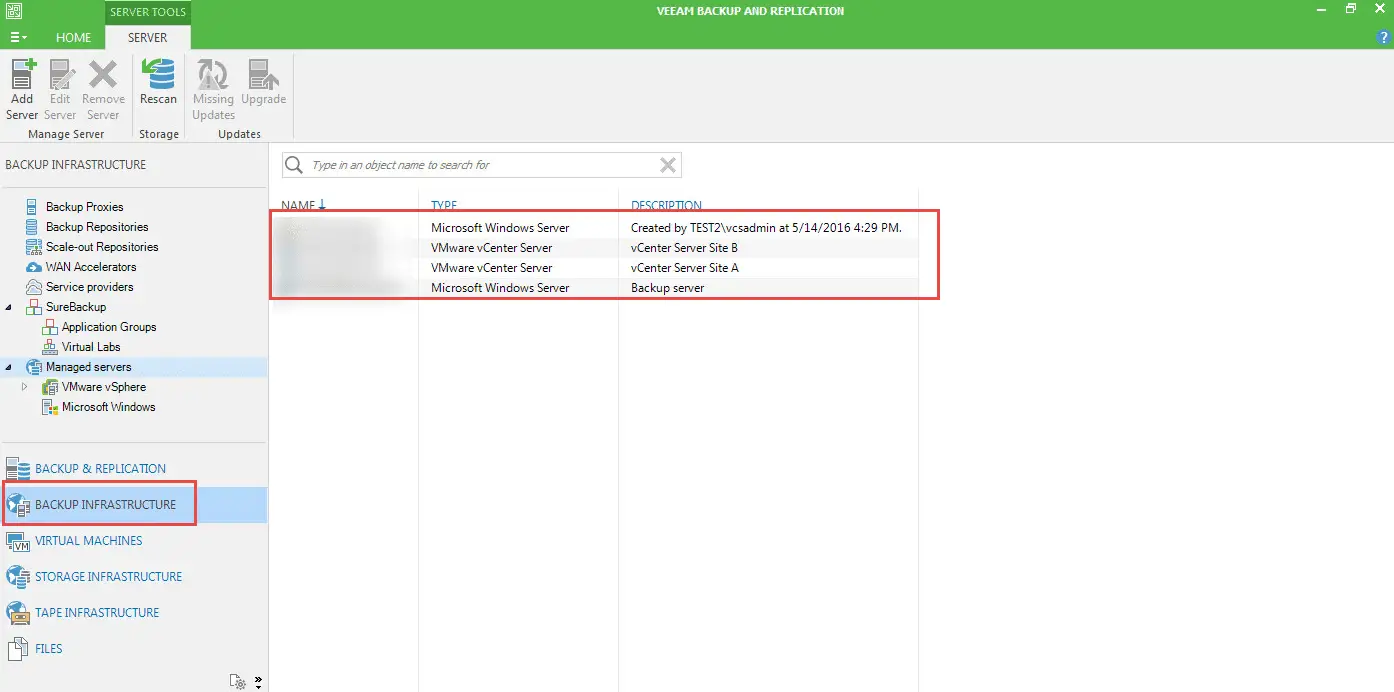
Re‑validate certificate via Backup Infrastructure
As I said before, you have to re-validate the certificate, so you should go to “Backup Infrastructure” and select your server then right click on the server and click on “Properties”.
Then, you will face with the below dialog:
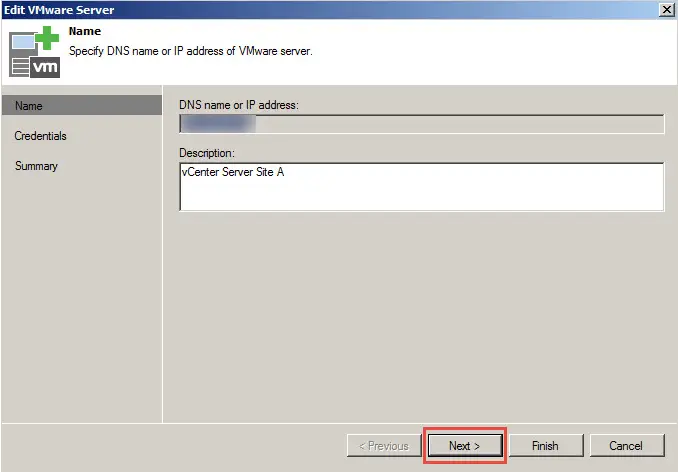
Click “Next”.
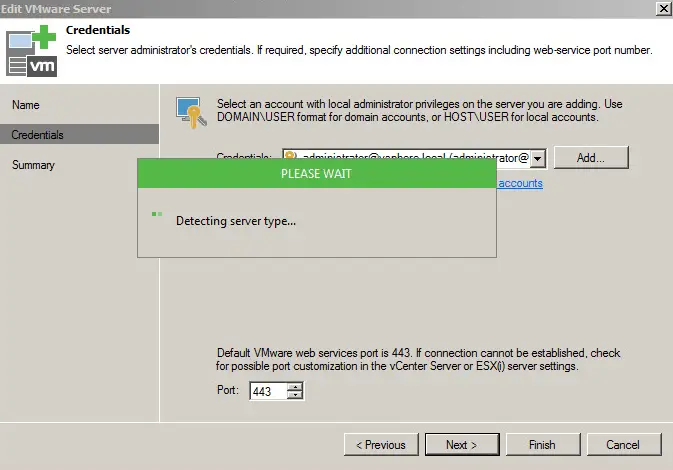
At this window, you need to choose your credential, choosing previous credential is recommended.
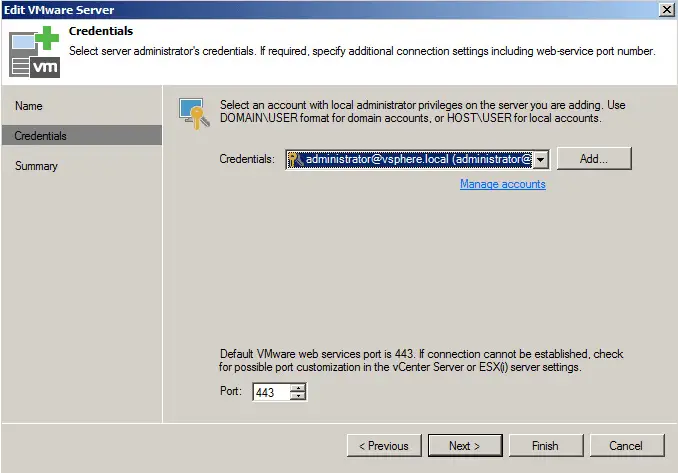
When you click on “Next” at this window, Veeam BR will validating your credential and the server’s certificate and if it is valid, Veeam BR will save the server configuration otherwise you will face with the below prompt:
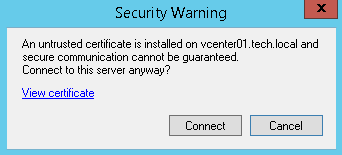
Click on “Connect” and your problem will be resolved and you will see the below window:
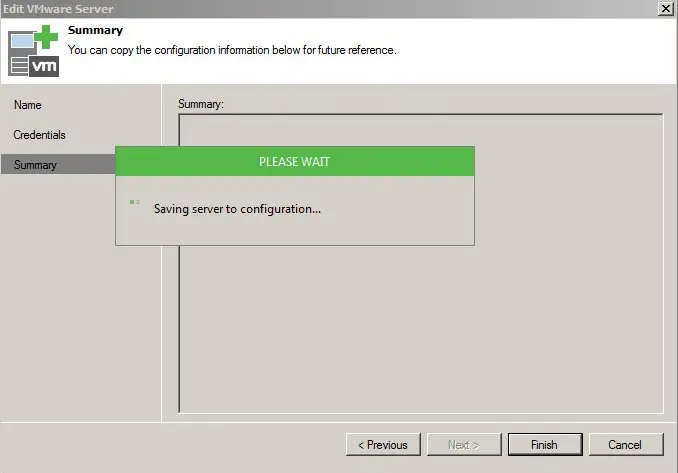
Now, enable your jobs and run one of them, if the job runs successfully, you have no problem otherwise follow the below step to troubleshooting and resolving the problem.
You have to check your jobs logs in this step, so go to the below path to find your job log:
C:\Program Data\Veeam\Backup\<Your Job Name>
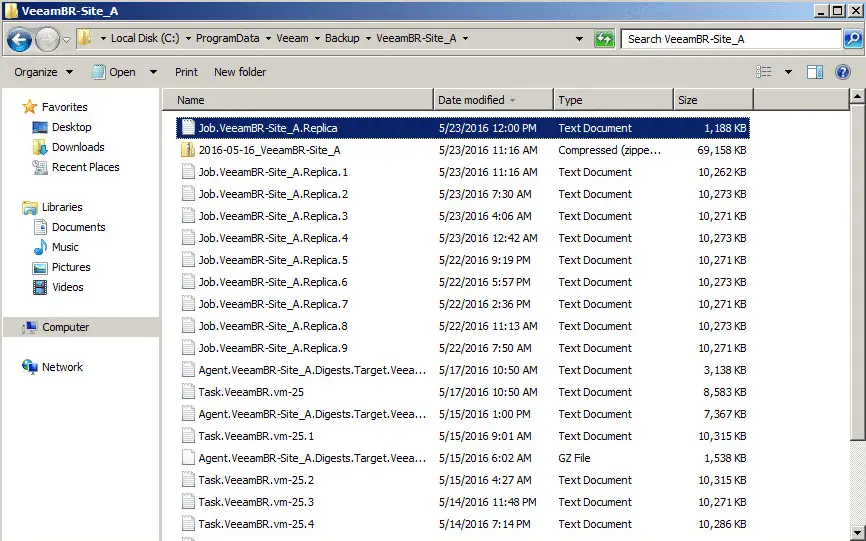
Open the last log file and search “Mismatch!” word within that.
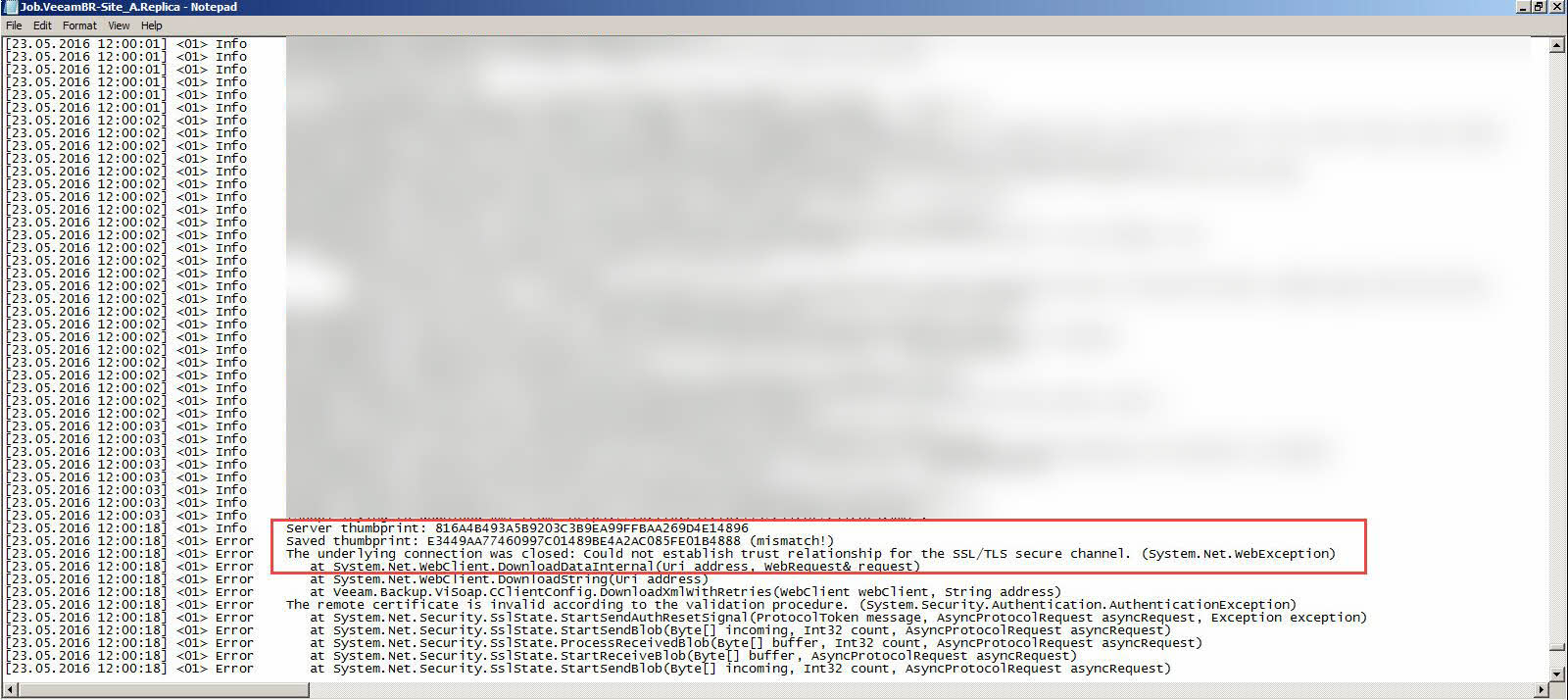
If you found the word, it means that your server thumbprint is different with saved thumbprint on the database and it should be changed.
Update thumbprint via SQL
Now, you need to have access to your database. Copy saved thumbprint from the log file and then logon to your database server via Management Studio and run a select query on “dbo.Soap_creds” table:
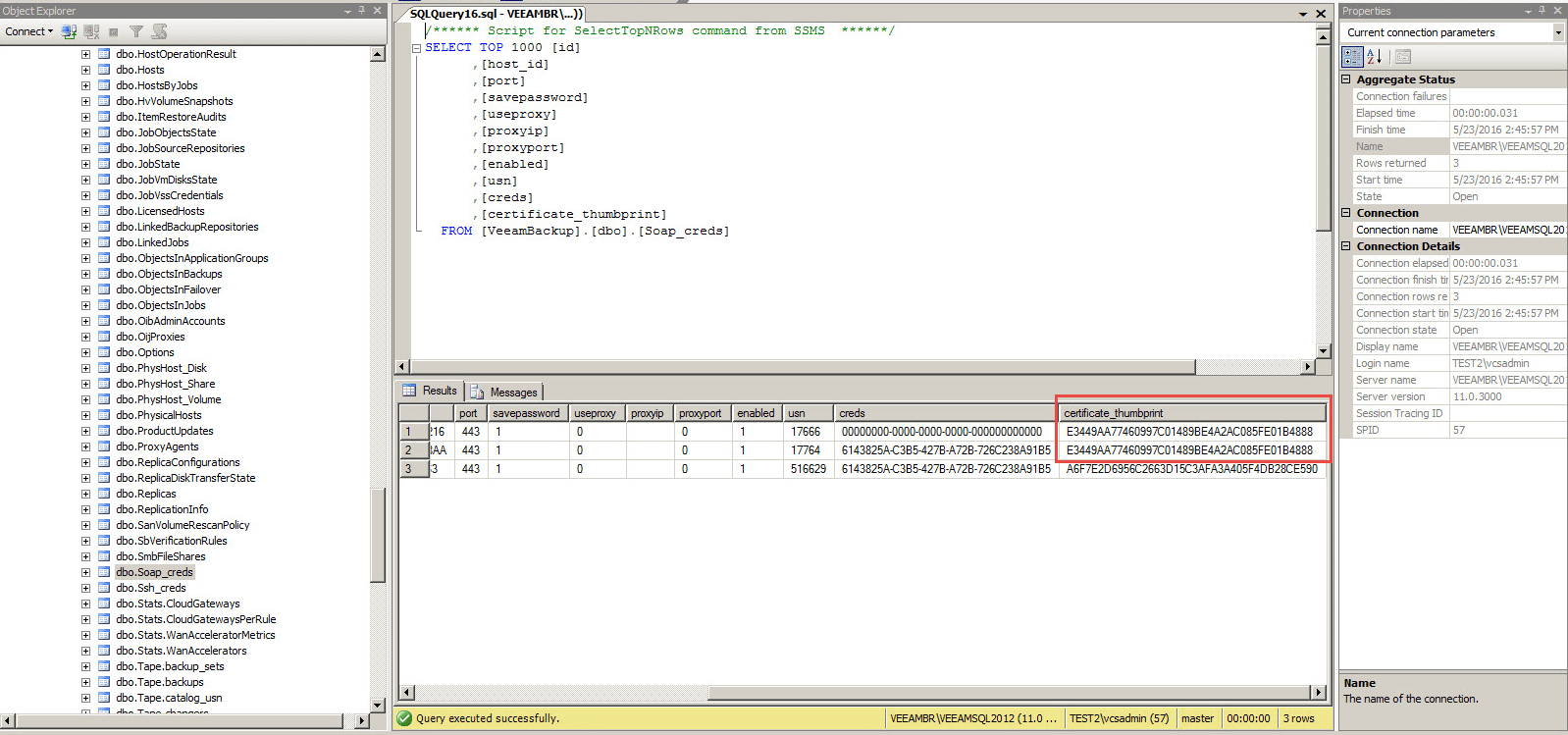
At this step, you should replace the thumbprints with server’s thumbprint (You can copy it from log file) and also you should remove any records that its “creds” column is : 00000000-0……….
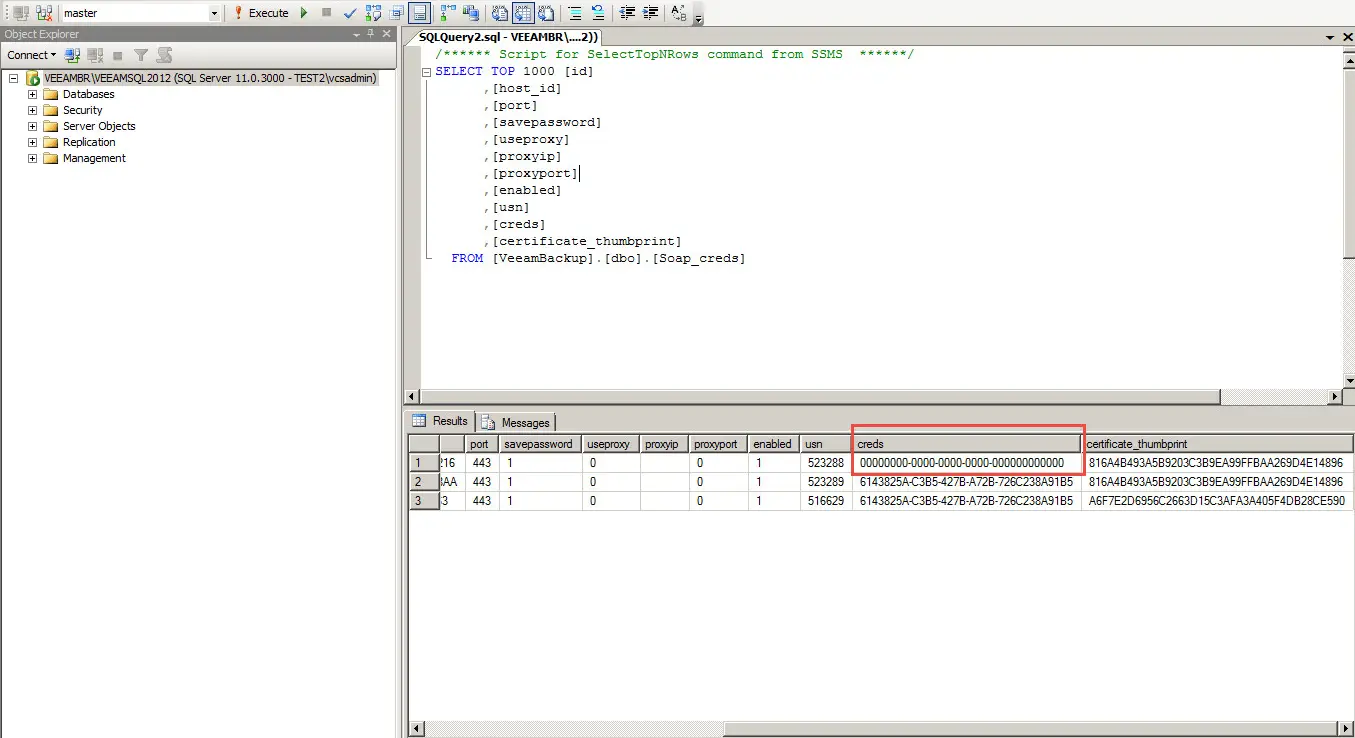
Now start Veeam BR service and enable your jobs and see the result.
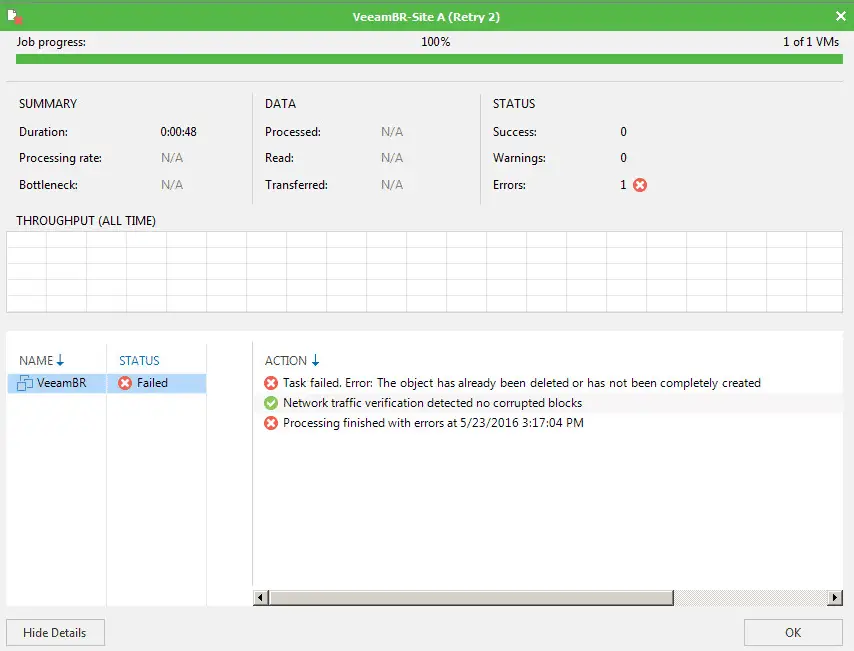
If you faced with the below error:
- The object has already been deleted or has not been completely created.
You have to edit your jobs, re-add the VMs or edit destination specifications or remove all snapshots from snapshot list:
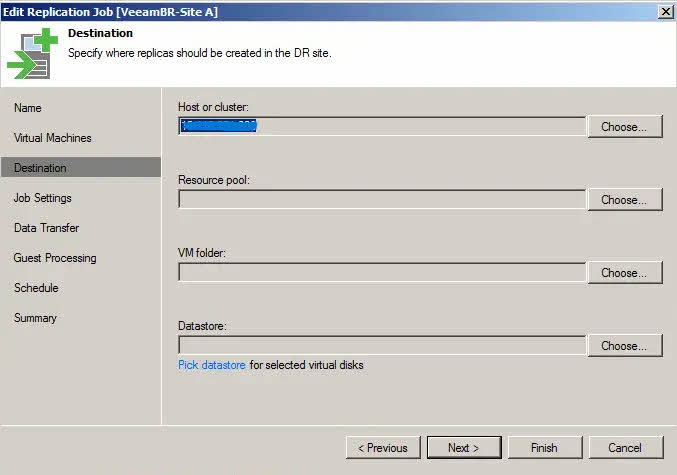
Hope, this post helps you to resolving same issues. If you had same issue on newer version, please share your experiences with me in comment or send by email.
FAQ
🔸 Q1: What causes the “Invalid Remote Certificate” error in Veeam?
This error usually occurs when the SSL certificate on the vCenter or ESXi host has changed, and Veeam is still using the old thumbprint.
🔸 Q2: Can I fix it without SQL access?
Yes. In many cases, you can just re-edit the server in Veeam Backup Infrastructure and press OK to update the certificate.
🔸 Q3: Is it safe to stop Veeam services during the fix?
Yes, but ensure no backup or replication jobs are running. Stop the services temporarily, then restart after the fix.
🔸 Q4: What if the new certificate is still invalid?
Double-check that the certificate is trusted and not expired. You may need to manually update the thumbprint in the Veeam database.
Further Reading
Veeam Backup and Replication – How to Choose Best Transport Mode for vSphere Proxy?
Veeam Backup & Replication Community Edition

Very well explained , got my problem resolved , Solution provided is to the point .
Thanks Very much
Welcome and thank you for your comment.
Thank you for your explained, my problem has been solved.
Welcome and thank you for reading.
You blog post help me get my issues resolved. Happened after an upgrade to vCenter 6.7 … which I discovered after was not yet supported by Veeam. My fault for not performing my due filigence but it was an unscheduled upgrade in order to resolve another issue.
I restored my vCenter server from Veeam to a host and corrected all related issues there. Then I tried my backups and ran into the invalid remote certificate issue (strangely with only one of my three hosts). The rescan did not work, however instead of accessing the database I removed the host from the backup infrastructure inventory and then added it again (I did get the untrusted certificate but clicking connect anyway worked).
Thanks again for your post, it got me to my solution quickly and easily.
Thank you for your comment.
What is your Veeam version?
Very well explained. Resolved the issue. Thanks.
Issue has been resolved Thanks for you provided steps.:-)
Welcome, thank you for your comment.
Well Done! thank you for documenting this so effectively. Veeam support was no help and referred me to our certificate authority…what a waste of support. A little Googling and your fix resolved our issues at 3 sites in less than 5 minutes. THANK YOU.
Wow, 5 minutes at 3 sites. What’s your version? I want to know if the solution is working on recent versions.
Great solution. I fixed the issue in five minutes! I found I did not have to disable the Veeam Backup service because it kicked me out when I did. Thanks very much!
Import-Module Veeam.Backup.PowerShell
$credentials = (Get-VBRCredentials -Name “credAccountName”)
$VBRServers = Get-VBRServer -Type “ESXi”
foreach ($VBRServer in $VBRServers) {Set-VBRESXi -Server $VBRServer -Credentials $credentials}
Thank you so much, nice easy fix for a non veeam and VMWare expert.
thanks lot kardesim
after renew all certificates in vcsa 6.5 u3 we had to use your solution.
Seems, still working. Thanks for comment and feedback.
Hi Davoud,
Thanks for your experience sharing with this issue and it’s solved my case for Bkp jobs
but actually it’s not working with surebackup jobs.. Any Advise?
Hi,
Thanks for feedback. I didn’t check it for SureBackup but I guess that must working for all services.
The first part of this article helped to fix the issue. The problem was caused due to someone renewed the TLS/SSL certificate in vCenter and forgot to validate the credentials and the new certificate in VBR.
Thank you very much.
Thank you for sharing, but the solutions dosnot work, I tried to remove vcenter from backup infrastructure but it is not removed because of all the jobs related to vcenter. i should remove all the jobs?what is your suggestion?
Hi, thanks for reading the post. You have to remove all jobs and then remove vCenter. So, the backups will be changed to imported and after readding the vCenter, you can map backups to new job.
Make document about the jobs and also you can create them by PowerShell faster than GUI.