Category: Free Tools

0

HP Scripting Toolkit for Windows and Linux

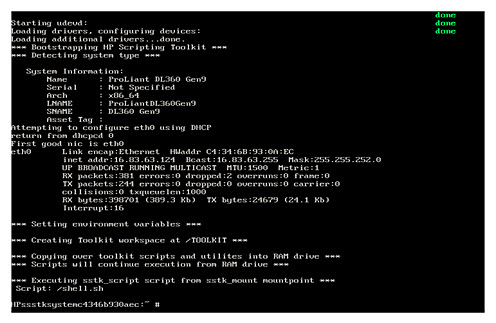
The Scripting Toolkit for Windows and Linux is a server deployment solution that deliver unattended automated installation for high-volume server and BladeSystem infrastructure deployments. You need to the below requirements for deploy OS on your servers by the tools: Scripting Toolkit for Linux or Windows A Linux workstation (any Linux distribution) Microsoft Windows Automated Installation Kit for Windows 8. 1 and Server 20 1 2 R2 (for the creation of Windows PE 5.0) or Microsoft Windows Assessment and Deployment Kit for Windows 8 and Windows Server 20 1 2 (for the creation of Windows PE 4.0). The Scripting Tools can deploy Windows Server 2008 R2, 2012, 2012 R2 and most of Linux Server distributions. The deployment steps for Linux and Windows are as follows: Linux: Create a network share. Prepare the bootable media (CD/DVD, USB drive key , or PXE). Configure the system and storage hardware on the target server . Perform the operating system installation. Windows: Create a network share. Prepare the bootable media (CD/DVD, USB drive key , or PXE). Configure the system and storage hardware on the target server . Install the operating system. Update the drivers and agents as needed. You can download the Scripting Tools...

2

HP Lights-Out Stand Alone Remote Console for Windows

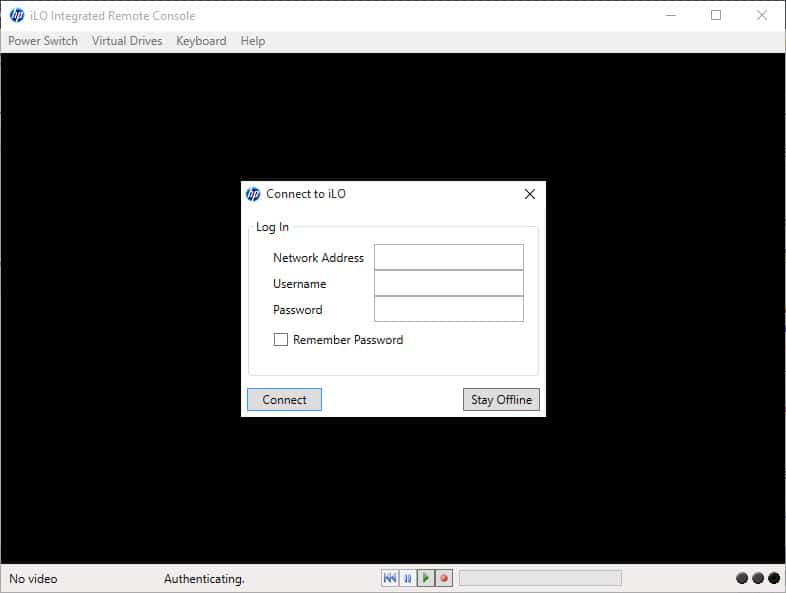
HP Lights-Out Stand Alone Remote Console is a tool for connecting to your iLO4 or iLO3 remote console without going through the iLO web-based user interface. This Last version (1.2.3) has been released at 24 Jul 2014. You can download it from HP site. Launching from the Command Line: During start-up, this application will pop up a dialog box asking for login information. The dialog box will be bypassed if the login information is provided on the command line as follows: HPLOCONS –addr address[:https_port] –name login_name –password password –lang language_code address DNS name or IP address https_port SSL port. Default is 443. login_name login name password Password language-code en, ja, or zh-CHS   Requirements: .NET Framework 3.5 (SP1 is recommended), 4.0 or 4.5 ProLiant or Integrity server with an iLO management processor Limitations: Older computers or computers without accelerated graphics will require significantly more CPU overhead. If a firewall is in use, shared remote console will require a firewall exception. The default ports are 17990 for KVM and 17988 for virtual media. The local and remote mouse cursors will be unsynchronized on Linux unless the HP mouse driver is installed.  

Chocolatey! 0

Chocolatey!

Chocolatey NuGet is a Machine Package Manager, somewhat like apt-get, but built with Windows in mind. It’s awesome! Install applications automatically by running a command! Test it.

ESXi 5.0 / ESXi 5.1 Host Backup & Restore GUI Utility 1

ESXi 5.0 / ESXi 5.1 Host Backup & Restore GUI Utility

Host configuration is important for an administrator. If you have a valid backup from your host’s configurations, you can restore that on your host or also new host in any case of issue. For example, when your upgrade process is failed or you have to replace your faulty server with new one. You can restore your backup on your server. It’s possible by use PowerCLI or vCLI but I found an utility made by Sean Duffy. What it is essentially, is a GUI that allows you to Backup ESXi 5.0 or ESXi 5.1 hosts to a destination of your choice on a local drive. You can download that from this link:http://www.shogan.co.uk/vmware/esxi-5-0-host-backup-restore-gui-utility-powercli-based/  

VMware OS Optimization Tool: Best Tool for Optimize Operationg System 0

VMware OS Optimization Tool: Best Tool for Optimize Operationg System

Jack McMichael has released the tool that helps to optimize Windows 7 desktops for use with VMware Horizon View and VDI in general. The optimization tool includes customizable templates to enable or disable Windows system services and features, per VMware recommendations and best practices, across multiple systems. Since most Windows system services are enabled by default, the optimization tool can be used to easily disable unnecessary services and features to improve performance. What Can We Do by VMware OS Optimization Tool? You can perform the following actions using the VMware OS Optimization Tool: The tools also include a Remote OS Optimization Tool, which uses the same functionality as the Optimization Tool, but connects to a remote VMware View broker so that remote parent and template VMs can be enumerated and optimized. Check out Jack’s new tool at the VMware Labs website. Click here. Further Reading I/O Block Size (> 3 MB) Best Practice on EMC AFA/HFA and Linux (Physical and Virtual) Download and Install Windows Updates Remotely via PSWindowsUpdate PowerShell Module LINBIT (DRBD, LINSTOR): One of The Best Software Defined Storage Solutions