Monthly Archive: August 2017
Sometimes, you did install Linux on a virtual machine that the virtual machine has no NIC, when installation has been completed, you will face with the below error during “ifdown”, “ifup” or restarting network services
You know, PowerCLI is one of vSphere scripting and automation tools and most of administrators using it for automation and doing their job faster than working with GUI. Finding ESXi host information and exporting those information is very simple and fast via PowerCLI. I want to show you, finding ESXi HBA WWN by PowerCLI in this post. The script is so simple, if you want to find HBA information about specific ESXi host, you can customize that. The below script can help you to find WWN addresses for all your ESXi hosts in a cluster: Get-Cluster | Get-VMhost | Get-VMHostHBA -Type FibreChannel | Select VMHost,Device,@{N=”WWN”;E={“{0:X}” -f $_.PortWorldWideName}} | Sort VMhost,Device To find WWN addresses of a specific host, change the script same as the below: Get-VMhost -Name {ESXi Host Name}| Get-VMHostHBA -Type FibreChannel | Select VMHost,Device,@{N=”WWN”;E={“{0:X}” -f $_.PortWorldWideName}} | Sort VMhost,Device

Introduction Veeam Backup & Replication – PowerShell Extension Veeam Backup & Replication – PowerShell Extension or Veeam Backup and Replication PowerShell Toolkit is a snap-in to Microsoft Windows PowerShell. The Veeam Backup PowerShell snap-in allows you to do almost all operations that are available in the user interface. Keep in mind that actions performed with PowerShell have the same force as actions performed via Veeam Backup & Replication: for example, if you delete a job with a PowerShell script, the job will be removed from the Veeam Backup & Replication database, and you will not be able to undo changes. You can use it for managing anything in backup server faster than GUI and prepare reports for your BOSS! Requirements You can run Veeam Backup & Replication PowerShell Extension on PowerShell 2 and later. PowerShell 4.0 is recommended for Veeam Backup & Replication 9.5. How To Run Veeam Backup & Replication – PowerShell Extension If you are working on your backup server directly, you can access to PowerShell via Veeam Backup & Replication Console: You can install Veeam Backup & Replication – PowerShell Extension on other Windows machine and connect to remote backup server. Find and execute BPS_x64.msi from the “Backup” folder...
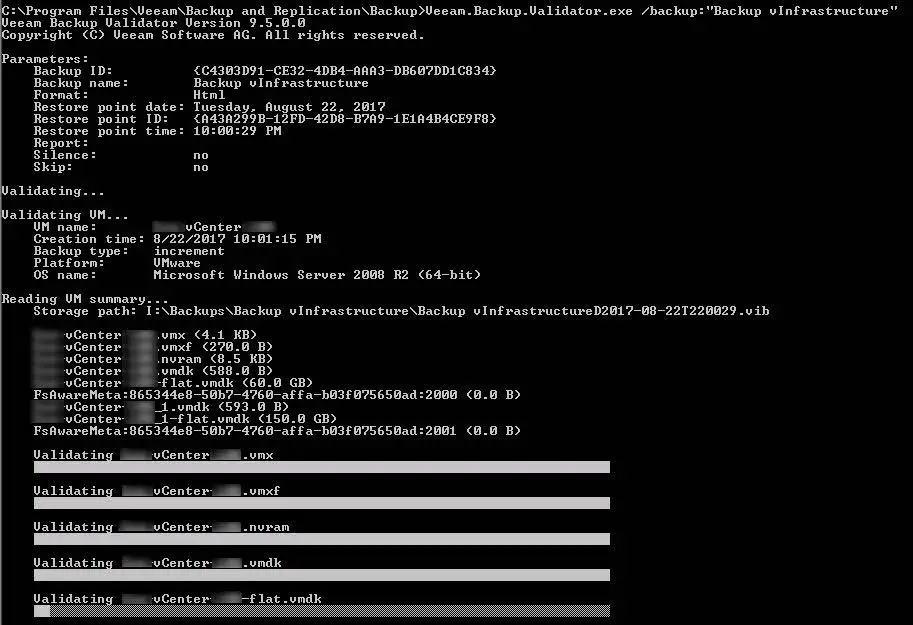
Veeam BR provides an internal tool for checking backup health offline. Backup is a way to keep data safer in any environment but no one can guarantee that the backup file is healthy because there is some reason that backup file can be corrupted during backup or after backup such as storage failure or during backup copy on an external medium. As the backup file health is very important and sometimes administrators have to restore virtual machines after accidentally deletion. Without removing VM data, that is a tool that checks the integrity of backup files. A backup is tested at the file level by the command-prompt CRC check programme Veeam Backup Validator. If backup data were transmitted over a network or if hardware issues happened in a backup storage area, you might need to use this application to determine whether they were damaged. The tool use the checksum method for integrity validation. Every data block in the backup file is given a checksum, which Veeam Backup & Replication adds to the data blocks when it creates a backup of a virtual machine. Data block checksums are recalculated by Veeam Backup Validator, and they are compared to the original checksum values....
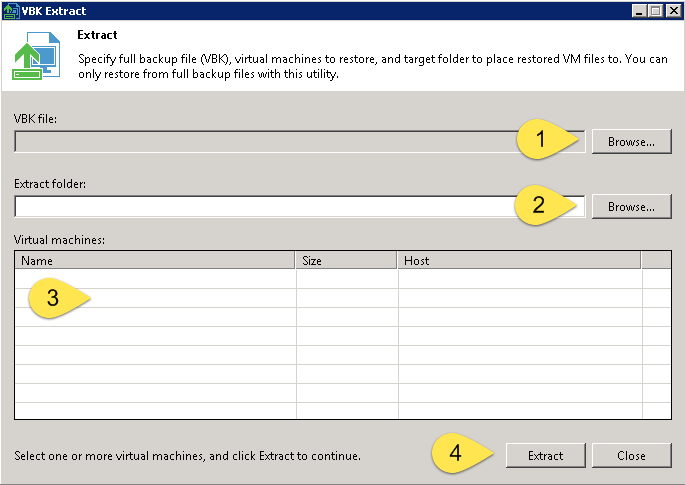
Introduction To Veeam Backup Extractor Veeam Backup Extractor is a Veeam utility to extract VMs from full backup (VBK) file. Administrators can extract VMs from backup file without installing Veeam Backup & Replication. There is no dependency between the utility and Veeam Backup & Replication, so the utility works as independent utility. Administrators can copy the utility from backup server to another server and run that easily. Note: I didn’t test extract VMs from a backup file which it’s placed on a shared folder. There is two interface for extracting VMs from backup files: The extract utility is located in the installation folder of Veeam Backup & Replication, by default: %PROGRAMFILES%\Veeam\Backup and Replication\Backup. The folder contains three files for the extract utility: Graphical User Interface GUI is available by run Veeam.Backup.Extractor.exe from this path: %PROGRAMFILES%\Veeam\Backup and Replication\Backup Extracting VMs is so simple from backup files by using Veeam.Backup.Extractor.exe, just click on browse button (1), select backup file (2), then select VM from the VMs list and then click Extract to extracting virtual machines from the backup file. Command-Line Utility There is two command-line utility for Windows and Linux that administrators be able to extract VMs from backup file by run the commands. There...
Veeam ONE Reporter Collection Job Veeam ONE Reporter collection job is a scheduled job to gathering virtual infrastructure information to providing reports for administrators about virtual infrastructure performance, issues and capacity planning. Sometimes, the job will be failed cause of some issues in the Veeam Reporter service and an error will indicate on Veeam ONE Monitor Client. Administrators should care about the issue because the error means that virtual infrastructure information is out of date and any report is unusable. Troubleshooting Step 1: At first step, checking “Veeam ONE Reporter Server” service is very important. Check the service and if it’s stopped, start the service and if it’s started , restart the service and run “Object Properties Collection Task” from Veeam ONE Reporter portal. Wait to job is completed and if issue not resolve go to the next step. Step 2: If stop/start the service didn’t resolve issue, restarting the server is second solution because of OS issues. Run “Object Properties Collection Task” from Veeam ONE Reporter portal, wait to job is completed and if issue not resolve go to the next step. Step 3: If step 1 and step 2 didn’t help to resolve issue, the monitor user permission...