

If you are still spinning up massive, nested ESXi environments just to test a basic PowerCLI script, a Python vSphere API wrapper, or a custom Terraform provider, you are wasting compute. Marketing teams want you to buy more hardware for dev environments; engineering reality dictates we simulate. Enter VCSIM (vCenter Server Simulator) —the lightweight vCenter simulator that boots in milliseconds instead of hours.
Understanding vCenter Server Simulator: Beyond the Basics
What is vCenter Server Simulator and Why It Matters
VCSIM (vCenter Server Simulator) represents VMware’s official tool for simulating vCenter Server and ESXi API endpoints. Unlike traditional lab environments that require dedicated hardware and lengthy boot times, VCSIM (vCenter Server Simulator) provides instant API simulation for development and testing workflows. Specifically, the modern Go-based implementation (often called govcsim) leverages the govmomi library to deliver accurate vSphere API behavior without the overhead of a full virtual infrastructure.
Consequently, architects and automation engineers use VCSIM to validate SDK integrations, test infrastructure-as-code templates, and develop automation scripts against realistic vSphere APIs. Subsequently, this approach significantly reduces development cycles and eliminates environmental inconsistencies that plague shared lab environments.
vCenter Server Simulator Core Architectural Components
VCSIM operates as a Go application that implements the vSphere SOAP and REST APIs through the govmomi backend. Specifically, it maintains an in-memory inventory of virtual objects including datacenters, clusters, hosts, virtual machines, datastores, and networks. When API calls arrive, VCSIM processes them against this simulated inventory and returns appropriate responses matching real vCenter behavior.
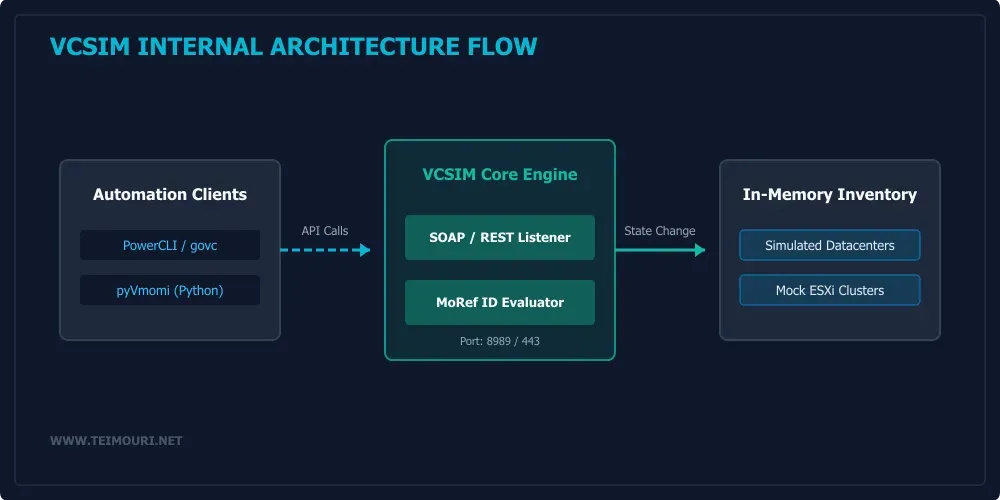
Meanwhile, the simulator supports multiple operational modes:
- Standalone vCenter simulation
- vCenter with embedded ESXi hosts
- Pure ESXi simulation
- Custom inventory loading via JSON/YAML
Accordingly, engineers can tailor the simulation complexity to match their testing requirements without unnecessary resource consumption.
Deployment Strategies for vCenter Server Simulator
Local Installation and Execution
To begin using VCSIM, first ensure you have a working Go toolchain (version 1.16 or later recommended). Then install the simulator directly from the vmware/govmomi repository:
go install github.com/vmware/govmomi/vcsim@latestAfter installation, start VCSIM with default settings:
vcsim -listen :8080This command launches the simulator on port 8080 with a basic inventory containing a single datacenter, cluster, and ESXi host. Subsequently, you can connect to it using standard vSphere tools pointed at `localhost:8080/sdk`.
Alternatively, run VCSIM in Docker for isolated testing:
docker run -p 8080:8080 vmware/govmomi:vcsim-latestConsequently, the containerized approach provides instant cleanup and version control for CI/CD pipelines.
vCenter Server Simulator Advanced Configuration Options
VCSIM offers numerous flags to customize simulation behavior. Specifically, the `-register` flag controls inventory complexity:
# Register a medium-sized inventory
vcsim -listen :8080 -register medium
# Register a large inventory with multiple datacenters
vcsim -listen :8080 -register large -dc 3
Meanwhile, the `-esxi` flag adds simulated ESXi hosts to the environment:
vcsim -listen :8080 -esxi 4 # Adds 4 ESXi hostsFor persistent state across restarts, use the `-state` flag to save and load inventory snapshots:
# Save state on exit
vcsim -listen :8080 -state /tmp/vcsim.state
# Load previous state
vcsim -listen :8080 -state /tmp/vcsim.state
Accordingly, these options enable realistic long-term testing scenarios.
API Version Compatibility Matrix
Govmomi Version Alignment
VCSIM API compatibility directly tracks with the underlying govmomi library version. Consequently, ensuring version alignment between your client tools and the simulator prevents unexpected behavior.
| Govmomi Version | vSphere API Version | Supported Features | VCSIM Compatibility |
|---|---|---|---|
| v0.24.x | 7.0 | REST, Tagging, Content Library | Full |
| v0.25.x | 7.0 U2 | vSphere APIs for Container | Full |
| v0.26.x | 8.0 | vTopology, vSphere Pods | Full (v0.26.0+) |
| v0.27.x | 8.0 U1 | vSphere+ Tanzu, NSX-Aligned | Full |
| v0.28.x | 8.0 U2 | vSphere DRP Enhancements | Full |
Meanwhile, note that VCSIM may not implement every esoteric API endpoint. Specifically, check the [govmomi vcsim README](https://github.com/vmware/govmomi/blob/main/vcsim/README.md) for current limitations and unimplemented features.
Client Tool Compatibility
VCSIM works with standard vSphere client tools when properly configured. For example:
• **govc**: Set `GOVC_URL=http://localhost:8080/sdk` and `GOVC_INSECURE=1`
• **PowerCLI**: Use `Connect-VIServer -Server localhost:8080 -Protocol https -Port 8080 -Insecure`
• **pyVmomi**: Configure host as `localhost:8080` with `disableSslCertValidation=True`
• **Terraform vSphere Provider**: Set `vsphere_server = "localhost:8080"` and `allow_unverified_ssl = true`
Consequently, existing automation scripts often require only endpoint and security configuration changes to target VCSIM instead of production vCenter.
Practical Usage Examples
PowerCLI Automation Testing
One of the most common VCSIM use cases involves validating PowerCLI scripts before deployment to production environments. Consequently, this approach catches syntax errors and logical flaws early in the development cycle.
First, start VCSIM with a realistic inventory:
vcsim -listen :8080 -register large -esxi 8Then, in your PowerShell session:
# Connect to the simulated vCenter
Connect-VIServer -Server localhost:8080 -Protocol https -Port 8080 -Insecure

# Test a basic VM provisioning script
$vmConfig = @{
    Name           = "TestVM-VCSIM"
    MemoryGB       = 4
    NumCPU         = 2
    Datastore      = "datastore1"
    NetworkName    = "VM Network"
    GuestID        = "ubuntu64Guest"
}

# Create the VM
New-VM @vmConfig -Location (Get-Datacenter "dc1")

# Validate creation
Get-VM -Name "TestVM-VCSIM" | Select Name, PowerState, NumCPU, MemoryMB

# Clean up when done
Remove-VM -Name "TestVM-VCSIM" -DeleteFromDisk -Confirm:$false
Disconnect-VIServer -Server * -Confirm:$false
Accordingly, this validates your PowerCLI logic against a realistic vCenter simulation without consuming production resources.
Python SDK Development
Similarly, VCSIM accelerates development of Python-based vSphere automation using the pyVmomi SDK. Specifically, the instant feedback loop enables rapid iteration on API interactions.
First, ensure pyVmomi is installed:
pip install pyVmomiThen create a test script:
from pyVim import connect
from pyVmomi import vim
import ssl
import atexit
context = ssl._create_unverified_context()
si = connect.SmartConnect(host="localhost", user="root", pwd="", port=8080, sslContext=context)
atexit.register(connect.Disconnect, si)
content = si.RetrieveContent()
for dc in content.rootFolder.childEntity:
    if hasattr(dc, 'vmFolder'):
        vms = dc.vmFolder.childEntity
        if vms:
            for vm in vms:
                print(f"VM: {vm.name}")
                print(f"  Power State: {vm.runtime.powerState}")
                print(f"  Guest OS: {vm.summary.config.guestFullName}")
        else:
            print(f"No VMs found in {dc.name}")
Consequently, developers can rapidly test SDK interactions against realistic API responses.
Terraform Provider Validation
Infrastructure-as-Code engineers benefit tremendously from VCSIM when developing or troubleshooting Terraform vSphere provider configurations. Subsequently, this eliminates the “works on my machine” problem caused by environmental differences.
First, create a Terraform configuration targeting VCSIM:
terraform {
  required_providers {
    vsphere = {
      source  = "hashicorp/vsphere"
      version = "~> 2.0"
    }
  }
}

provider "vsphere" {
  user           = "root"
  password       = ""
  vsphere_server = "localhost:8080"
  allow_unverified_ssl = true
}

data "vsphere_datacenter" "dc" {
  name = "dc1"
}

data "vsphere_datastore" "ds" {
  name          = "datastore1"
  datacenter_id = data.vsphere_datacenter.dc.id
}

resource "vsphere_virtual_machine" "test" {
  name             = "tf-vcsim-test"
  resource_pool_id = data.vsphere_compute_cluster.cluster.resource_pool_id
  datastore_id     = data.vsphere_datastore.ds.id

  num_cpus = 2
  memory   = 512   # MB
  guest_id = "ubuntu64Guest"

  network_interface {
    network_id   = data.vsphere_network.network.id
    adapter_type = "vmxnet3"
  }

  disk {
    label = "terraform"
    size  = 10     # GB
  }
}
Then initialize and apply:
terraform init
terraform apply -auto-approve
Consequently, this validates your Terraform configuration against a realistic vCenter simulation before applying changes to production environments.
Conclusion
VCSIM (vCenter Server Simulator) represents an indispensable tool for modern vSphere automation engineering. Consequently, by replacing resource-intensive lab environments with instant API simulation, teams achieve faster development cycles, higher code quality, and more reliable infrastructure deployments.
Furthermore, the combination of VCSIM with standard tools like PowerCLI, pyVmomi, Terraform, and govc creates a powerful validation pipeline that catches errors before they reach production. Subsequently, this approach aligns with shift-left testing principles and DevOps best practices.
Meanwhile, remember that VCSIM excels at API-level simulation but does not replace the need for occasional hardware validation. Accordingly, use it for functional and integration testing while reserving physical labs for performance, scalability, and hardware-specific validation.
Finally, start small, iterate rapidly, and let VCSIM accelerate your journey toward reliable, automated vSphere operations. The compute you save today will fund tomorrow’s innovations.
Recommended Next Steps
1. Install VCSIM locally using `go install github.com/vmware/govmomi/vcsim@latest`
2. Run a basic simulation: `vcsim -listen :8080`
3. Connect with your preferred tool (govc, PowerCLI, etc.)
4. Execute your automation scripts against the simulator
5. Gradually increase inventory complexity as needed
6. Integrate VCSIM into your CI/CD pipeline for continuous validation
7. Stay updated with govmomi releases for new features and improvements
Consequently, you will quickly experience the productivity benefits that simulation brings to vSphere automation engineering.
Internal References
• For advanced vSphere NUMA optimization techniques, see [vTopology in vSphere NUMA](https://www.teimouri.net/vtopology-in-vsphere-numa-vnuma-best-practices/)
• For networking configuration details, consult [Static Binding vs Ephemeral Binding](https://www.teimouri.net/distributed-switch-static-ephemeral-binding/)
External Resources
• Official Govmomi Repository: https://github.com/vmware/govmomi
• VMware Developer Documentation: https://code.vmware.com/apis/191/vsphere-automation
