

I’ve been running RHEL on VMware vSphere since ESXi 5.5 in my lab—nested labs, customer environments, production clusters. And there’s one gremlin that keeps biting engineers even in 2026: the RHEL disk order problem. You build a VM, attach a few VMDKs, configure your application, reboot, and suddenly /dev/sdb is /dev/sdc. Your database mounts the wrong disk. Oracle ASM can’t find its disks. Apache serves files from a stale path. This is not a bug. It’s how Linux has always assigned block device names—by enumeration order during kernel boot. But on vSphere the RHEL disk order problem turns acute because VMware’s SCSI controller re-presents disks in scan order that can shift between power cycles.
Here’s the thing: most engineers slap a few extra VMDKs on a RHEL VM, format them, add /dev/sdb1 to /etc/fstab, and call it a day. It works. Until it doesn’t. The RHEL disk order problem rears its head the moment you add another disk, change a SCSI controller, or your vSAN performs a rebalance that reorders LUN paths. I’ve seen Oracle RAC nodes get evicted because of this. I’ve watched PostgreSQL refuse to start because pgdata pointed to an OS disk instead of the data disk. Scars are real.
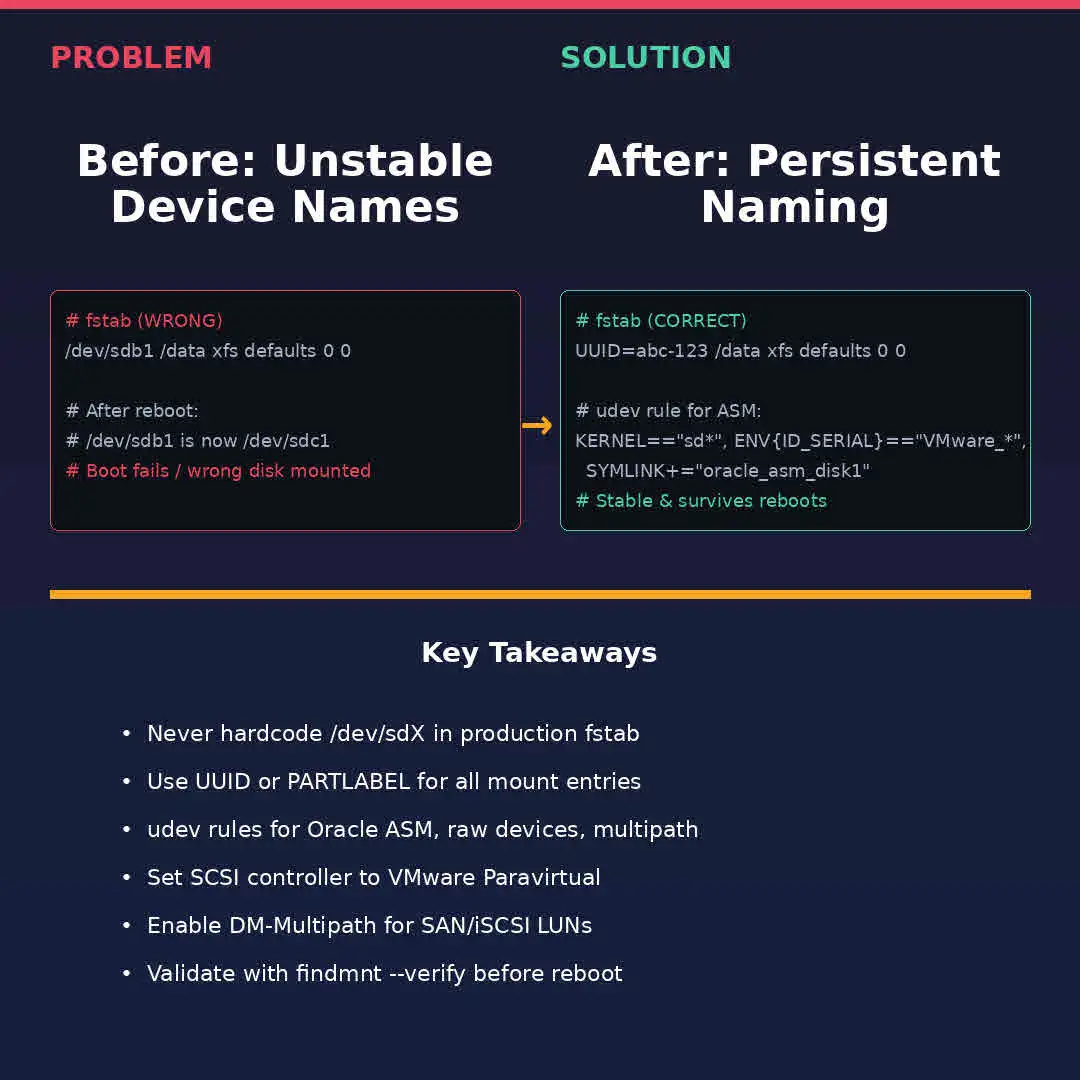
RHEL Disk Order Problem Quick Reference
- RHEL assigns /dev/sda, /dev/sdb, /dev/sdc by kernel scan order—not disk identity.
- On vSphere, scan order can change between reboots, especially after adding VMDKs or changing SCSI controllers.
- Never reference /dev/sdX in /etc/fstab, udev rules, Oracle ASM, or any config that must survive a reboot.
- Use UUID or PARTLABEL in fstab. Use udev SYMLINK rules for raw device access.
- For SAN/iSCSI, enable DM-Multipath and reference /dev/mapper/mpathX.
- Validate with findmnt –verify before your next reboot.
If you only read this section, you know what this problem is and how to fix it. The rest of this post explains why it happens on VMware vSphere. It walks through case scenarios I’ve seen in production, and gives you copy-paste-ready solutions.
What Causes the RHEL Disk Order Problem on VMware vSphere?
This problem has roots in how the Linux kernel assigns block device names. The kernel’s SCSI subsystem probes devices in the order they appear on each SCSI bus. The first device found gets /dev/sda, the next /dev/sdb, and so on. This assignment is ephemeral. It’s not tied to the disk’s identity. On physical hardware you rarely notice because your HBA topology is stable. The controller scans the same disks in the same order every boot.
On VMware vSphere it’s different. The VMware Paravirtual SCSI controller (PVSCSI) and the LSI Logic controller present virtual disks as SCSI targets. The scan order depends on the target ID assigned to each VMDK, the controller bus, and sometimes the order in which vCenter assigns hardware. When you add a new disk to a running VM, RHEL does a SCSI rescan and assigns the next available /dev/sdX. But on the next full reboot, the kernel re-probes from scratch—and the new disk might land before an existing one if its target ID is lower.
I’ve seen it happen on vSAN, on FC SAN with RDM, and on local datastore VMDKs. This isn’t storage-protocol-specific. It’s a naming problem at the guest OS level. The underlying cause is always the same: /dev/sdX is positional, not persistent. Here’s a concrete example:
# Before reboot — everything looks right
# lsblk output:
sda              8:0    0   50G  0 disk
├─sda1           8:1    0    1G  0 part  /boot
└─sda2           8:2    0   49G  0 part  /
sdb              8:16   0  200G  0 disk  /data        ← app data
sdc              8:32   0  100G  0 disk  /oracledata  ← Oracle ASM

# After adding disk + reboot — RHEL disk order shifts:
sda              8:0    0   50G  0 disk
├─sda1           8:1    0    1G  0 part  /boot
└─sda2           8:2    0   49G  0 part  /
sdb              8:16   0  100G  0 disk              ← was /dev/sdc!
sdc              8:32   0  200G  0 disk              ← was /dev/sdb!
If /etc/fstab says /dev/sdb1 for /data, you’re now mounting the Oracle disk at /data and /dev/sdc1 mounts the application data on /oracledata. The filesystem labels don’t match. Oracle can’t open its ASM disks. Your application crashes or—worse—silently serves stale data. This is the problem in a nutshell. It’s noisy, it’s intermittent, and it costs hours of troubleshooting at 3 AM.
Why vSphere Amplifies This More Than Bare Metal
Several vSphere-specific behaviors make this problem more pronounced than on bare metal or KVM:
- SCSI target ID assignment: vSphere assigns target IDs based on the order VMDKs are added, but the kernel scans by target ID—not disk add-order.
- Multiple SCSI controllers: if you have two PVSCSI controllers, disks on controller 1 are scanned before controller 0 depending on PCI bus order.
- vSAN rebalancing: vSAN can migrate components between hosts. The VMDK identity stays the same, but the underlying path through the SCSI stack shifts.
- Storage vMotion: moving a VMDK between datastores can change the SCSI NAA ID, which changes udev-identifiable attributes.
- Snapshot consolidation: when snapshots consolidate, the delta disk chains are re-presented to the VM. This can subtly change the enumeration order.
- Hot-add disks: adding a disk to a running VM does a SCSI rescan, but the disk lands at the end of the /dev/sdX chain. Reboot reorders everything.
On KVM or Hyper-V, the virtual SCSI layer is more deterministic because the host presents disks in a fixed PCI-slot order. vSphere’s flexibility with SCSI controllers and target IDs is great for configuration flexibility but bad for guest OS stability if you’re relying on /dev/sdX names.
Case Scenarios: Where the RHEL Disk Order Problem Bites Hardest
I’ve fielded this problem across database servers, file servers, and application clusters. Each scenario has its own flavor of pain. Let me walk you through the ones I see most often.
Scenario 1: Oracle Database and ASM on RHEL vSphere VMs
This is the classic. Oracle ASM expects raw device access via udev rules or ASMLib. If your ASM disk group references /dev/sdb, /dev/sdc, /dev/sdd, and the disk order shifts after a reboot, ASM can’t open the disk group. The database instance crashes. In RAC, the node gets evicted. I remember a customer call at 2 AM — the DBA said Oracle reported ORA-15081 errors and could not communicate with ASM. The root cause? A new VMDK had been added for a temp directory two weeks prior, but the system hadn’t been rebooted since. First patching cycle after the add: disk order shifted, ASM lost its disks, Oracle came down.
The fix for ASM is the same fix I always recommend: stop using /dev/sdX in ASM configuration. Use udev SYMLINK rules that create stable device names like /dev/oracle_asm/disk1 instead of relying on /dev/sdb.
Scenario 2: PostgreSQL and Application Data Disks
PostgreSQL on RHEL suffers the same fate. If your systemd unit or pgdata location points to /dev/sdc1-mounted /pgdata and this problem puts your OS disk at /dev/sdc after a reboot, PostgreSQL tries to initialize a fresh cluster on the wrong device. Or it just refuses to start because the mount point is no longer where it expects. On a vSphere VM with 4-5 VMDKs (OS, pgdata, WAL archive, pgbackup, temp), the probability of a disk reordering is non-trivial.
The solution is the same pattern: UUIDs in fstab, consistent mount points, and a post-mount validation. But PostgreSQL adds its own wrinkle—you also need to verify data_directory in postgresql.conf isn’t pointing at a /dev/sdX-dependent path.
Scenario 3: File Servers and NFS/iSCSI Backing Stores
I had a file server cluster on vSphere—two RHEL VMs presenting NFS to a team of 100+ users. Each VM had four VMDKs: OS, export1, export2, and a hot-scratch disk. After a vMotion, one VM rebooted for kernel patching and the scratch disk landed at /dev/sdb, pushing export1 to /dev/sdc. Because the fstab referenced /dev/sdb1 for export1, the NFS export now pointed to the scratch disk. Users connected to an empty directory and started complaining about missing files. No data was lost—the export1 disk was still /dev/sdc1—but the mount point was wrong.
The fix took 10 minutes: unmount, update fstab with UUIDs, mount, validate. But the outage lasted 30 minutes because nobody had seen the disk order problem before. If the fstab had used UUIDs from day one, the issue would never have existed.
Scenario 4: Disk Order Problem on RAC Clusters
Oracle RAC on vSphere is its own beast. Each node typically has shared VMDKs for OCR/voting and data. If the disk order shifts on one node but not another, the cluster can’t agree on disk identity. The node whose disk order changed loses access to the voting disk and gets evicted. With RAC’s tight timeout windows—often 200 seconds or less—a disk reorder during a path failure can take down the whole cluster. Red Hat has documented this with DM-Multipath active in the guest; VMware KB 7146777 references it for RAC node eviction and reboot during transient storage path failures.
For RAC, the fix is mandatory: udev rules for every shared disk, plus DM-Multipath for path redundancy. Both nodes must agree on device names. If they don’t, the cluster is fragile.
Solutions: Fixing the RHEL Disk Order Problem Permanently
Fixing this problem is not hard. It’s just not optional. There are four layers of defense. Implement all four and you’ll never see this issue again.
Solution 1: Use UUID in /etc/fstab
This is table stakes. Every filesystem in RHEL has a unique UUID assigned at mkfs time. The UUID never changes. Replace every /dev/sdX reference in fstab with the filesystem’s UUID. Here’s how to find them:
# List all block devices with UUIDs
lsblk -f

# Output:
NAME  FSTYPE  LABEL  UUID                                 MOUNTPOINT
sda1  xfs                  afa5d5e3-9050-48c3-acc1-bb30095f3dc4 /boot
sdb1  xfs                  7b3c1d2e-4f5a-6789-abcd-ef0123456789 /data
sdc1  xfs                  9c4d2e3f-5a6b-7890-bcde-f0123456789 /oracledata

# Get UUID for a specific device
blkid /dev/sdb1
Then in /etc/fstab, replace the device path with UUID=:
# Before (dangerous):
/dev/sdb1  /data        xfs  defaults        0 0
/dev/sdc1  /oracledata  xfs  defaults        0 0

# After (safe — immune to the RHEL disk order problem):
UUID=7b3c1d2e-4f5a-6789-abcd-ef0123456789  /data        xfs  defaults  0 0
UUID=9c4d2e3f-5a6b-7890-bcde-f0123456789  /oracledata  xfs  defaults  0 0
Validate before you reboot. This command checks every fstab entry mounts correctly without actually mounting:
findmnt --verify --verbose

# If everything is good, no output.
# If something is wrong, you get specific error per mount point.
Solution 2: udev Rules for Persistent Device Symlinks
UUIDs solve the fstab problem. But what about raw device access? Oracle ASM, raw database files, and some clustering software need to address devices directly. For those, udev rules are the answer. udev can create stable symlinks based on device attributes that don’t change—serial number, WWID, or SCSI ID.
First, find the persistent attributes for your disk:
# Get all udev attributes for /dev/sdb
udevadm info --attribute-walk --name=/dev/sdb | grep -E '(ID_SERIAL|ID_WWN|SUBSYSTEMS)'

# Example output:
  ATTR{ID_SERIAL}=="VMware_Virtual_disk_6000c291-abc-1234"
  ATTR{ID_WWN}=="0x5000c291abc1234"
  SUBSYSTEMS=="scsi"
Create a udev rule in /etc/udev/rules.d/60-persistent-disk.rules:
# /etc/udev/rules.d/60-persistent-disk.rules

# Oracle ASM disk 1 — stable symlink regardless of scan order
KERNEL=="sd*", ENV{ID_SERIAL}=="VMware_Virtual_disk_6000c291-abc-1234", \
  SYMLINK+="oracle_asm/disk1", GROUP="oinstall", MODE="0660"

# Oracle ASM disk 2
KERNEL=="sd*", ENV{ID_SERIAL}=="VMware_Virtual_disk_6000c292-def-5678", \
  SYMLINK+="oracle_asm/disk2", GROUP="oinstall", MODE="0660"
Reload and trigger:
udevadm control --reload-rules
udevadm trigger

# Verify symlinks exist:
ls -l /dev/oracle_asm/
# lrwxrwxrwx  1 root root  ... /dev/oracle_asm/disk1 -> ../sdb
# lrwxrwxrwx  1 root root  ... /dev/oracle_asm/disk2 -> ../sdc

# Test the rule fires correctly:
udevadm test /dev/sdb 2>&1 | grep -i "oracle_asm"
Now Oracle ASM references /dev/oracle_asm/disk1 and /dev/oracle_asm/disk2. Even if the underlying /dev/sdX changes after reboot, the symlinks point to the right physical disk because they’re keyed on ID_SERIAL, which is tied to the VMDK’s NAA ID on vSphere.
Solution 3: DM-Multipath for SAN and iSCSI LUNs
If your RHEL VM connects to SAN or iSCSI LUNs—either through RDM or iSCSI initiator inside the guest—you need DM-Multipath. This solves the disk order problem for multi-path storage and gives you stable /dev/mapper/mpathX names. Multipath aggregates all paths to a LUN into a single pseudo-device with a deterministic name based on the LUN’s WWID.
# Install multipath
dnf install device-mapper-multipath

# Enable and start the service
systemctl enable --now multipathd

# Confirm it's running
systemctl status multipathd

# List multipath devices
multipath -ll

# Example output:
mpatha (3600508b4001088c0000c000001a0000) dm-0 IBM,2145
size=200G features='1 queue_if_no_path' ...
round_robin 0 [active]
  \_ 3:0:0:1 sdb  8:16  active ready running
  \_ 4:0:0:1 sdc  8:32  active ready running
Now reference /dev/mapper/mpatha in fstab, Oracle ASM, or your application config. The name stays stable across reboots because it’s derived from the LUN WWID. If you have multiple LUNs, you can assign friendly names in /etc/multipath.conf:
# /etc/multipath.conf — friendly alias section
multipaths {
    multipath {
        wwid  3600508b4001088c0000c000001a0000
        alias oracle_data_01
    }
    multipath {
        wwid  3600508b4001088c0000c000001b0000
        alias oracle_data_02
    }
}

# Reload after editing:
systemctl reload multipathd
multipath -r
Solution 4: vSphere SCSI Controller Configuration
On the vSphere side, you can minimize the risk by standardizing your SCSI controller configuration. I always use VMware Paravirtual SCSI (PVSCSI) for data disks. It has better throughput, lower CPU overhead, and more deterministic behavior than the default LSI Logic SAS. But this problem can still occur even with PVSCSI, because the naming logic is in the guest, not the hypervisor.
Best practices on the vSphere side:
- Use a separate SCSI controller for the OS disk (controller 0) and data disks (controller 1+).
- Assign target IDs manually when adding VMDKs—don’t let vSphere auto-assign if you have specific ordering requirements.
- Keep the number of disks per controller reasonable—under 15 per PVSCSI controller.
- Avoid hot-adding disks to production VMs. If you must, schedule a reboot and validate device names after.
Comparison: Approaches to Solving the RHEL Disk Order Problem
Here’s how the four solutions stack up against each other:
| Approach | Use Case | Complexity | RHEL 8/9 | Oracle ASM? | Survives Reboot? |
|---|---|---|---|---|---|
| UUID in fstab | Filesystem mounts | Low | Native | No (needs raw) | Yes |
| udev SYMLINKs | Raw device naming | Medium | Native | Yes | Yes |
| DM-Multipath | SAN/iSCSI LUNs | Medium | Native | Yes | Yes |
| PVSCSI + target ID | vSphere config hygiene | Low | N/A (guest) | Helps | Partial |
| /dev/sdX (none) | Nothing—never use | Zero | Unreliable | Breaks ASM | No |
Bottom line: layer the solutions. UUID in fstab for all filesystem mounts. udev rules for raw device access. DM-Multipath for SAN/iSCSI. And PVSCSI controllers with mindful target ID assignment on the vSphere side. The disk order problem disappears completely when you do all four.
Verification: How to Confirm Your RHEL Disk Order Problem Is Fixed
After implementing the solutions, verify before you walk away. Here’s the checklist I run on every VM after fixing this problem:
- Run lsblk -f and confirm every mount point shows a UUID, not /dev/sdX.
- Run findmnt –verify –verbose and confirm it exits cleanly.
- Run blkid and keep a copy of the UUIDs.
- If using udev rules: run udevadm test on each device and confirm the symlinks exist.
- If using multipath: run multipath -ll and confirm all expected mpathX devices appear.
- Reboot the VM. After boot, run lsblk again and verify the order changed but UUIDs and symlinks are stable.
- For Oracle: verify ASM disk groups mount and the database opens.
- For PostgreSQL: verify pgdata mounts on the correct device and the service starts.
That last step—actually rebooting and confirming epoch—is the one most engineer skip. Don’t. The problem only manifests on reboot. If you haven’t rebooted, you haven’t verified.
These are the authoritative sources I reference when troubleshooting the RHEL disk order problem on vSphere:
- Red Hat Documentation — Persistent Naming Attributes (RHEL 9): https://docs.redhat.com/en/documentation/red_hat_enterprise_linux/9/html/managing_file_systems/assembly_overview-of-persistent-naming-attributes_managing-file-systems
- Red Hat KB — How to write udev rules in RHEL: https://access.redhat.com/solutions/1135513
- Red Hat KB — Oracle RAC node evicted due to guest-level DM-Multipath: https://access.redhat.com/solutions/7146777
- VMware Docs — VMware Paravirtual SCSI Controller design guide (vSphere 8): Configuring disks to use VMware Paravirtual SCSI (PVSCSI) controllers
- VMware KB — RDM and persistent device naming best practices: https://kb.vmware.com/s/article/1014953
- Red Hat Documentation — DM-Multipath configuration guide: https://docs.redhat.com/en/documentation/red_hat_enterprise_linux/9/html/configuring_device_mapper_multipath
- Linux man page: udev(7), udevadm(8), multipath(8), multipath.conf(5)
Related Posts on teimouri.net
If you found this guide useful, these related posts dive deeper into topics I touch on here:
- Linux KickStart — Automated Installation: Setting up RHEL kickstart with partitioning that uses UUIDs from the start → https://www.teimouri.net/linux-kickstart-automated-installation/
- I/O Block Size Best Practice on EMC AFA/HFA and Linux: How block size tuning interacts with persistent device naming → https://www.teimouri.net/io-block-size-best-practice-emc-all-flash-hybrid-flash-array-linux-physical-virtual/
- Linux Deduplication and Compression (VDO): Why VDO on top of wrongly-named devices is a ticking bomb → https://www.teimouri.net/linux-deduplication-and-compression/
- Ceph Use Cases in vSphere: Distributed storage that bypasses the RHEL disk order problem by design → https://www.teimouri.net/ceph-vsphere-use-cases-best-practices-challenges/
- VMware vSphere Configuration Maximums: Know the limits of SCSI controllers and targets per host → https://www.teimouri.net/vmware/vsphere-configuration-maximums/
The Bottom Line
The disk order problem on VMware vSphere is a day-2 operations killer. It’s entirely preventable. I’ve been running RHEL VMs on vSphere for over a decade and the rule has never changed: never trust /dev/sdX names. UUIDs in fstab, udev symlinks for raw access, DM-Multipath for shared storage, and PVSCSI controllers with sane target ID assignment. Do all four and you’ll never get paged at 3 AM because a disk mysteriously changed identity.
If you’re running Oracle on vSphere, this isn’t optional. ASM disk groups are fragile to disk naming by design. If your udev rules or multipath config aren’t intact, a single reboot during a maintenance window can take down a production database. I’ve seen it. Fix it before the reboot, not after.
For my homelab and customer environments, this is now muscle memory. New disk gets UUID in fstab, udev rule if it’s ASM or raw, multipath if it’s SAN, and a findmnt –verify before I reboot. Takes five minutes. Saves hours. If you’re running RHEL 8 or 9 on vSphere, make it your standard too.
