Category: Backup & Replication

PowerShell 0

[Review]: Veeam Backup & Replication – PowerShell Extension

Introduction Veeam Backup & Replication – PowerShell Extension Veeam Backup & Replication – PowerShell Extension or Veeam Backup and Replication PowerShell Toolkit is a snap-in to Microsoft Windows PowerShell. The Veeam Backup PowerShell snap-in allows you to do almost all operations that are available in the user interface. Keep in mind that actions performed with PowerShell have the same force as actions performed via Veeam Backup & Replication: for example, if you delete a job with a PowerShell script, the job will be removed from the Veeam Backup & Replication database, and you will not be able to undo changes. You can use it for managing anything in backup server faster than GUI and prepare reports for your BOSS! Requirements You can run Veeam Backup & Replication PowerShell Extension on PowerShell 2 and later. PowerShell 4.0 is recommended for Veeam Backup & Replication 9.5. How To Run Veeam Backup & Replication – PowerShell Extension If you are working on your backup server directly, you can access to PowerShell via Veeam Backup & Replication Console: You can install Veeam Backup & Replication – PowerShell Extension on other Windows machine and connect to remote backup server. Find and execute BPS_x64.msi from the “Backup” folder...

Veeam BR Validator Command-Line Tool 1

Veeam BR Validator Command-Line Tool: Essential Tool for Validating Veeam Backups

Veeam BR provides an internal tool for checking backup health offline. Backup is a way to keep data safer in any environment but no one can guarantee that the backup file is healthy because there is some reason that backup file can be corrupted during backup or after backup such as storage failure or during backup copy on an external medium. As the backup file health is very important and sometimes administrators have to restore virtual machines after accidentally deletion. Without removing VM data, that is a tool that checks the integrity of backup files. A backup is tested at the file level by the command-prompt CRC check programme Veeam Backup Validator. If backup data were transmitted over a network or if hardware issues happened in a backup storage area, you might need to use this application to determine whether they were damaged. The tool use the checksum method for integrity validation. Every data block in the backup file is given a checksum, which Veeam Backup & Replication adds to the data blocks when it creates a backup of a virtual machine. Data block checksums are recalculated by Veeam Backup Validator, and they are compared to the original checksum values....

Veeam BR Extract Utility 1

First Look at Veeam BR Extractor and All Its Advantages

Introduction To Veeam Backup Extractor Veeam Backup Extractor is a Veeam utility to extract VMs from full backup (VBK) file. Administrators can extract VMs from backup file without installing Veeam Backup & Replication. There is no dependency between the utility and Veeam Backup & Replication, so the utility works as independent utility. Administrators can copy the utility from backup server to another server and run that easily. Note: I didn’t test extract VMs from a backup file which it’s placed on a shared folder. There is two interface for extracting VMs from backup files: The extract utility is located in the installation folder of Veeam Backup & Replication, by default: %PROGRAMFILES%\Veeam\Backup and Replication\Backup. The folder contains three files for the extract utility: Graphical User Interface GUI is available by run Veeam.Backup.Extractor.exe from this path: %PROGRAMFILES%\Veeam\Backup and Replication\Backup Extracting VMs is so simple from backup files by using Veeam.Backup.Extractor.exe, just click on browse button (1), select backup file (2), then select VM from the VMs list and then click Extract to extracting virtual machines from the backup file. Command-Line Utility There is two command-line utility for Windows and Linux that administrators be able to extract VMs from backup file by run the commands. There...

Ransomware 0

Protect Virtual Machine: How to Stay Safe from Ransomware
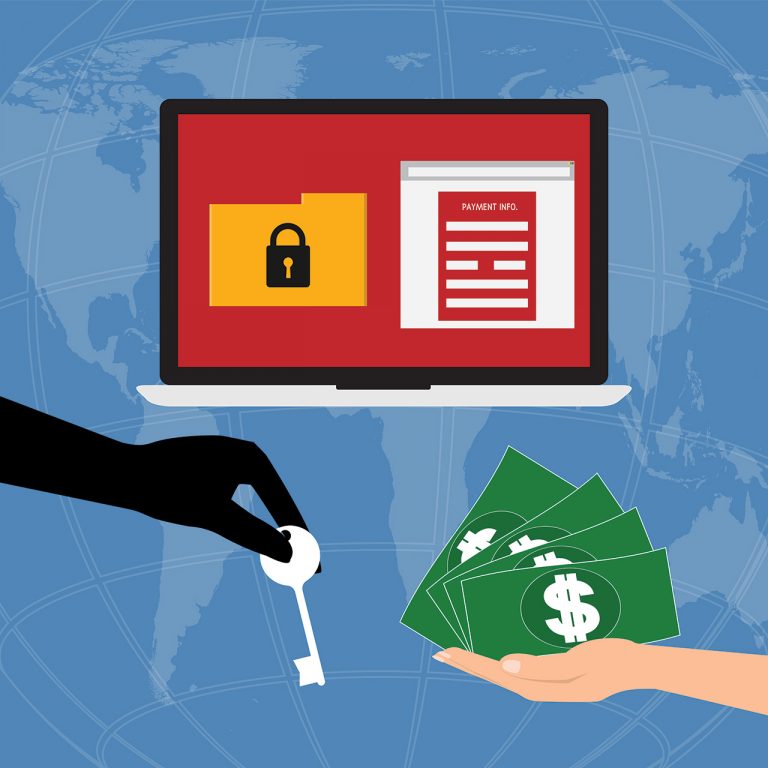
How can we protect VM against ransomware? This is important question for any infrastructure administrator. Actually, Ransomware is a computer malware, and it will be installed on wide range of devices such as computers, smartphones and wearable devices. It can attack to data and encrypt data then ask user to pay for decrypt data. Users may encounter in a number of ways. The most common method used by attackers to spread software is via e-mail as an attached file. Protecting Virtual Machines Most companies are using VDI solutions to deliver desktop experience to the users and virtual desktops acting same as physical desktop. Even all protection steps are provided for protecting users data such as strong anti-virus, firewall, email malware detection and other ways, attackers will try new way to infect user data and keep data as hostage and ask to pay money. When users data is encrypted by a Ransomware, administrators can help them by restoring their data from a valid backup, so one of solutions to protecting data is taking backup from them. Traditional Backup Administrators can ask users to keep their important data on shared folder or removable devices or sync them with same folders on other computers. But this is...

VM Backup Best Practices - Strategy 1

VM Backup Best Practices

Datacenters are going smaller compare to datacenters in past few years because of virtualization revolution. Organizations are deploying their services on virtual servers instead of physical servers and most companies over the world have large virtual farms. But some traditional challenges are still exists such as backup and disaster recovery. Virtual machine deployment and maintenance is easier than physical servers but administrators have to take backup from machines, files or any important data same as before, nothing changed! Also organizations still needs to recovery site for disaster recovery in other geographical location, all machines should be replicate between the primary and recovery site. Backup solutions are little different in virtual infrastructures with physical infrastructures but backup solution has also backward compatibility in virtualization platforms, means that the backup solutions covers both virtual and physical machines now. The new backup and recovery solutions still needs to storage space for storing backup files, bandwidth for transfer and computing resources for processing backup jobs. Any backup solution has some best practices and administrators should consider the best practices to achieve best results. Know VM backup best practices are important topics for planning and implementing backup solutions. Join me to review some of best practices...