You may know, we have two types of VM, Full-Clone and Linked-Clone. Now, you have two questions, what are Full-Clone and Linked-Clone? Full-Clone: The Full Clone — A full clone is an independent copy of a virtual machine that shares nothing with the parent virtual machine after the cloning operation. Ongoing operation of a full clone is entirely separate from the parent virtual machine. Linked-Clone: The Linked Clone — A linked clone is a copy of a virtual machine that shares virtual disks with the parent virtual machine in an ongoing manner. This conserves disk space, and allows multiple virtual machines to use the same software installation. You can find more information on “VMware Documentation Center”. VMware offers VMware Horizon View Composer for creating and delivering linked-clone machines to your user but is it possible without View Composer? Answer is yes. You can create linked-clone VM without using VMware Horizon View on VMware ESXi or VMware Workstation. You can create a linked-clone VM on VMware Workstation easily by its GUI, you should follow the below steps: Step 1: Create new virtual machine, install OS, install VMware Tools and other applications. Step 2: Power off VM and create a snapshot from...
When you enabled HA on a clster, some definition alarm will be activated. “vSphere HA virtual machine monitoring action” is one of them, this alarm has two triggers: vSphere HA enabled VM reset with screenshot. vSphere HA is resetting VM. These are useful alarms for troubleshooting and know, what was happened for a virtual machines during fail-over. Also you can find the screenshot on the VM’s folder as a PNG file. [quotes_and_tips]
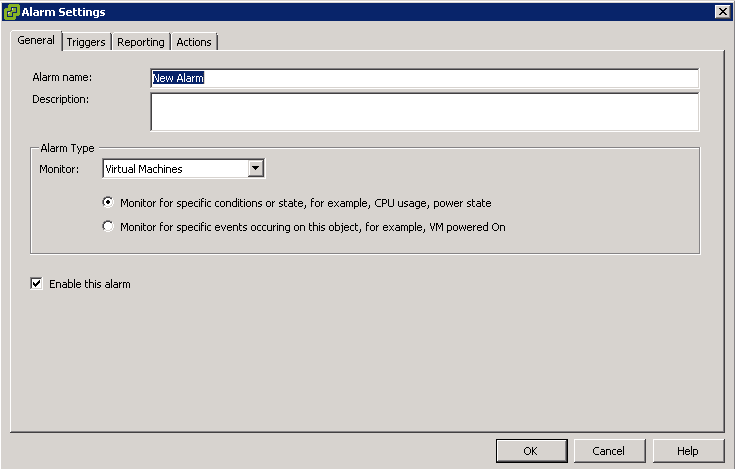
As I know and I have read it in many blogs that DRS is not sensitive to CPU ready time and when your cluster has enough CPU frequency and memory, cluster is balanced. There is a simple solution to resolve the issue or reduce the issue in your environment. Of course, this is not true solution and you need to analyze your platform, calculate your requirements especially CPU cores for your VMs and add more physical cores to by adding more physical servers. Create Alarm At first step, you need to define an alarm in your vCenter for virtual machine CPU ready: Create a user-defined alarm and enter a name as you wish. In Triggers tab, select “VM CPU Ready Time (ms) and define waning and error values and condition length. Default values are fine for most platforms. Just that, click on OK and our job is done. If you have virtual machines with high CPU ready, it will be detected by vCenter and alarm will be generated. Note: Please copy your alarm name and paste it in the below script. Also you can change exception time, if you need to run it after working hours. The Script Further Reading...
Achieving best performance on ESXi by HP ProLiant servers needs to change some default configuration on HP RBSU (ROM-Based Setup Utility) or UEFI (Unified Extensible Firmware Interface). Some of the configurations have been mentioned on “Performance Best Practices for. VMware vSphere” but some them not mentioned. You can change the below configuration to achieve best performance on ESXi: Setting Default Recommended Reason No-Execute Page Protection (AMD)System Options -> Processor Options -> No-Execute Page Protection No-Execute Memory Protection (Intel) System Options -> Processor Options -> No-Execute Memory Protection Enabled Enabled It’s recommended by HP and the features protects systems against malicious code and viruses. Intel Virtualization TechnologySystem Options -> Processor Options -> Intel Virtualization Technology AMD V (AMD Virtualization) System Options -> Processor Options -> AMD V (AMD Virtualization) Enabled Enabled When enabled, a hypervisor supporting this feature can use extra hardware capabilities provided by AMD/Intel. Intel Hyperthreading OptionsSystem Options -> Processor Options -> Intel Hyperthreading Options Enabled Enabled Intel Hyperthreading Options is a toggle setting that allows Intel Hyperthreading Technology to be enabled or disabled. Intel Hyperthreading delivers two logical processors that can execute multiple tasks simultaneously using the shared hardware resources of a single processor core. Enhanced...
If you have read HP or VMware documents about power management on ProLiant servers, both have suggested that configure power management to Static High Performance. I did it on all my ESXi servers and everything was good. But I have performance problem on some of G7 servers, I have checked all factors but I couldn’t find any reason about it. Then I found an article from HP about power management in ESXi and iLO3 (G7 servers). Seems, Static High Performance is root cause of performance issue on the servers with iLO3. This is related to power capping problem on iLO3. Based on the article suggestion, you should configure power management to OS control on the servers to preventing high CPU ready on virtual machines. You can see the instruction on the below link: https://h20566.www2.hp.com/hpsc/doc/public/display?sp4ts.oid=5178763&docId=mmr_kc-0105395&docLocale=en_US