Each version of vSphere has some improvements and one of important improvements are configuration maximums that allows administrators to have much bigger virtual machines, hosting more virtual machines, use faster network and storage connections. This is very important that you should aware about your current configuration maximums because you can prepare your forecast plans for increasing virtual machine or ESXi host resources or even changes on network or SAN environments based on these configuration maximums. Lets review latest vSphere configuration maximums and compare them with earlier versions. Virtual Machine Item vSphere 5.5 vSphere 6.0 vSphere 6.5 vCPU 64 128 128 Memory 1TB 4TB 6128GB Swap File 1TB 4TB 6128GB Virtual SCSI adapters per virtual machine 4 4 4 Virtual SCSI targets per virtual SCSI adapter 15 15 15 Virtual SCSI targets per virtual machine 60 60 60 Virtual disk size 62TB 62TB 62TB IDE controllers per virtual machine 1 1 1 IDE devices per virtual machine 4 4 4 Floppy controllers per virtual machine 1 1 1 Floppy devices per virtual machine 2 2 2 Virtual SATA adapters per virtual machine 4 4 4 Virtual SATA devices per virtual SATA adapter 30 30 30 Virtual NICs per virtual machine 10...
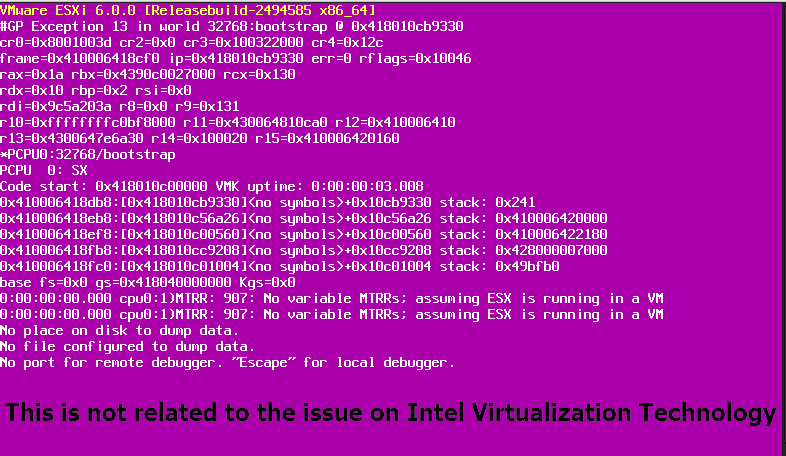
I have read a KB on VMware Knowledge Base and it says that an Intel Virtualization Technology can be cause of PSOD. This is little funny because ESXi will be affected by wide range of Intel Xeon processor family: Intel® Xeon® Processor 55xx Series Intel® Xeon® Processor 56xx Series Intel® Xeon® Processor 65xx Series Intel® Xeon® Processor 75xx Series Intel® Xeon® Processor E5-1400 v2 Product Family Intel® Xeon® Processor E5-1600 v2 Product Family Intel® Xeon® Processor E5-1600 v3 Product Family Intel® Xeon® Processor E5-2400 Product Family Intel® Xeon® Processor E5-2400 v2 Product Family Intel® Xeon® Processor E5-2600 Product Family Intel® Xeon® Processor E5-2600 v2 Product Family Intel® Xeon® Processor E5-2600 v3 Product Family Intel® Xeon® Processor E5-2600 v4 Product Family Intel® Xeon® Processor E5-4600 Product Family Intel® Xeon® Processor E5-4600 v2 Product Family Intel® Xeon® Processor E5-4600 v3 Product Family Intel® Xeon® Processor E5-4600 v4 Product Family Intel® Xeon® Processor E7-2800 Product Family Intel® Xeon® Processor E7-4800 Product Family Intel® Xeon® Processor E7-8800 Product Family Intel® Xeon® Processor E7-8800/4800/2800 v2 Product Families Intel® Xeon® Processor E7-8800/4800 v3 Product Families Intel® Xeon® Processor E7-8800/4800 v4 Product Families There is a workaround for preventing the problem and PSOD on server but VMware...
Three flings are updated by VMware engineers and published during this week and past week. HCIBench This fling is a “Hyper-converged Infrastructure Benchmark” tools and if you have vSAN in your environment, this fling is very useful for you. Changelog Increased Timeout value of client VM disk from 30 seconds to 180 seconds. Disabled client VM password expiration. Disabled client VM OS disk fsck. Set Observer interval to 60 seconds to shrink the size of observer data. Fixed PCPU calculation. Created link directory of /opt/automation/logs, user will be able to review the testing logs in http://HCIBENCH/hcibench_logs/ Increased the RAM of HCIBench from 4GB to 8GB to avoid running out-of-resource issue.
Last week, we went limit some our machines IOPS but we saw the limitation is not working on our machines, after searching the issue on VMware KB, we found an KB (2059192) that explain an known issue on ESXi 5.5 and ESXi 6. It seems, disk IO scheduling model has been changed on the platforms and it’s cause of the issue. But the solution is so simple, just you need to change an ESXi’s parameter: Revert the disk I/O scheduler to an earlier version by using the vSphere Web Client In the vSphere Web Client, edit the Disk.SchedulerWithReservation parameter in the Advanced System Settings list for the host. Navigate to the host. On the Manage tab, click Settings and click Advanced System Settings. Locate the Disk.SchedulerWithReservation parameter.Note: You can use the Filter or Find text boxes to find the parameter easily. Click Edit and set the parameter to 0. Click OK. Revert the disk I/O scheduler to an earlier version by using an ESXCLI command In the ESXi Shell to the host, run this console command: esxcli system settings advanced set -o /Disk/SchedulerWithReservation -i=0 There is no need to reboot or anything else. The configuration will be applied immediately.
Introduction Oracle VM introduced two main modes or domain types: Paravirtualized (PVM):A virtual machine with a kernel that is recompiled to be made aware of the virtual environment. Runs at near native speed, with memory, disk and network access optimized for maximum performance.Paravirtualized guests use generic, idealized device drivers, which are part of the guest’s OS. The I/O operations using these generic device drivers are mapped to the real device drivers in dom0. The generic, abstracted drivers in the guest seldom change and provide excellent guest stability. The dom0 domain, alternatively, can use the native hardware vendor drivers, and the guests can safely migrate to another dom0 with slightly different drivers. For other resources such as CPU and memory, paravirtualized kernels make special “hypercalls” to the Xen hypervisor. These hypercalls provide better performance by reducing the number of instructions and context switches required to handle an incoming request. By contrast, on an emulated (hardware virtualized) guest, driver requests engage the guest’s interrupt handler, increasing the I/O operation overhead. Hardware Virtualized Machine (HVM):A hardware virtualized guest runs on the virtualization platform as it would on a physical host. Because the device drivers of the hardware virtualized guest are emulated, dom0 must...